How to Install a TeamSpeak6 Server in 2026
Installing TeamSpeak 6 Server
We are going to follow their documentation here
One Major Issue:
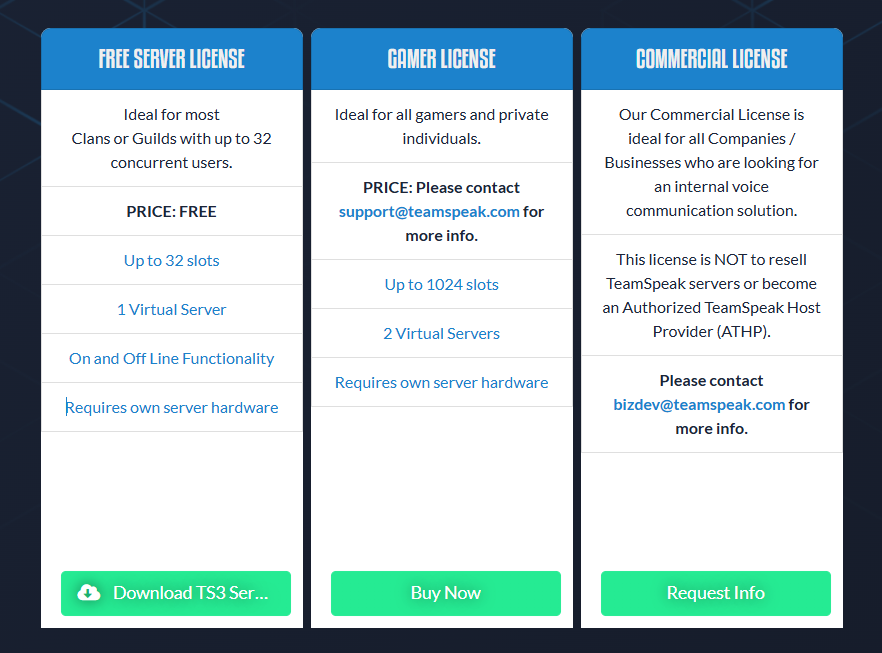
Teamspeak 6 free version only allows you to have 32 members (connected at any one given time! This does not mean you can only have 32 members join your server, it just means talking and connected to the server in a given moment), even if you self host the server.
Create a Proxmox VM
First thing you need to go is login to your preferred hypervisor and create a VM. We are creating our VM on Proxmox.
Specs:
- Ubuntu Server 24.04 LTS
- 4 Cores
- 8GB of RAM
- 50GB of Storage
However we need to Install Docker First:
Installing Docker
- Install using the apt repo.
# Add Docker's official GPG key:
sudo apt-get update
sudo apt-get install ca-certificates curl
sudo install -m 0755 -d /etc/apt/keyrings
sudo curl -fsSL https://download.docker.com/linux/ubuntu/gpg -o /etc/apt/keyrings/docker.asc
sudo chmod a+r /etc/apt/keyrings/docker.asc

# Add the repository to Apt sources:
echo \
  "deb [arch=$(dpkg --print-architecture) signed-by=/etc/apt/keyrings/docker.asc] https://download.docker.com/linux/ubuntu \
  $(. /etc/os-release && echo "$VERSION_CODENAME") stable" | \
  sudo tee /etc/apt/sources.list.d/docker.list > /dev/null
sudo apt-get update
- Install the Docker packages.
sudo apt-get install docker-ce docker-ce-cli containerd.io docker-buildx-plugin docker-compose-plugin
Verify that the installation is successful by running the hello-world image:
sudo docker run hello-world
Verify the compose version:
docker compose version
Setting up TeamSpeak 6 Compose File
The first thing we want to do is create a folder for our Docker files:
mkdir teamspeak6
Then we want to change into that directory with:
cd teamspeak6
We then need to create our docker compose file:
nano docker-compose.yml
Then we need to paste in the following:
services:
  teamspeak:
    image: teamspeaksystems/teamspeak6-server:latest
    container_name: teamspeak-server
    restart: unless-stopped
    ports:
      - "9987:9987/udp"   # Voice Port
      - "30033:30033/tcp" # File Transfer
      # - "10080:10080/tcp" # Web Query
    environment:
      - TSSERVER_LICENSE_ACCEPTED=accept
    volumes:
      - teamspeak-data:/var/tsserver

volumes:
  teamspeak-data:
    name: teamspeak-data
Now we want to start our server with:
sudo docker compose up -d
You can ensure your server is running with:
sudo docker compose ps
How to Connect to Your Teamspeak 6 Server
Download the TeamSpeak 6 Client here
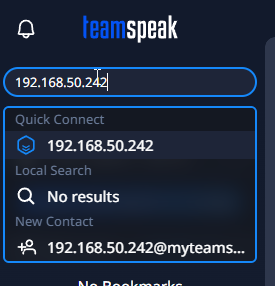
On the top left of your Discord Window, type in the IP address of your server, and you will connect:
Finding Your Teamspeak 6 Admin Privilege Key
From within your teamspeak directory, paste the following command:
sudo docker compose logs | grep -i "privilege\|token\|admin"
You will find it present:

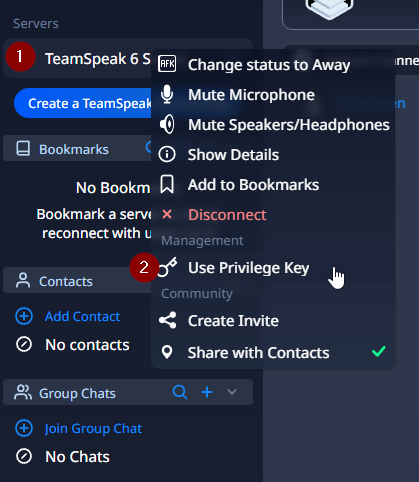
Now we can add our account as a server Admin, you do this by right clicking on the server, and selecting “Use privilege key”
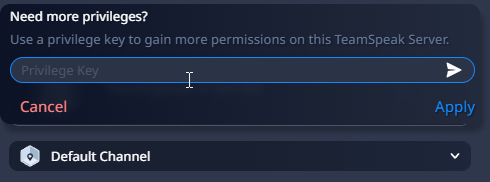
Then type that key from the command line into the box that it pops you into:
Useful Docker Commands
TeamSpeaks documentation does give a list of commands below which you may find useful:
# Running the server in detached mode using the example compose file
docker compose -f example-compose-sqlite.yaml up -d

# Check server logs (e.g. ServerAdmin privilege key)
docker compose -f example-compose-sqlite.yaml logs -f

# Manage the compose
docker compose -f example-compose-sqlite.yaml stop     # Stop the server
docker compose -f example-compose-sqlite.yaml start    # Start it again
docker compose -f example-compose-sqlite.yaml restart  # Restart in one step

# Clean up
docker compose -f example-compose-sqlite.yaml down     # Remove the container (data is kept in the volume)
docker volume rm teamspeak-data                        # Remove the data volume (permanently deletes all server data!)
How to Make more Admin Keys in Teamspeak 6
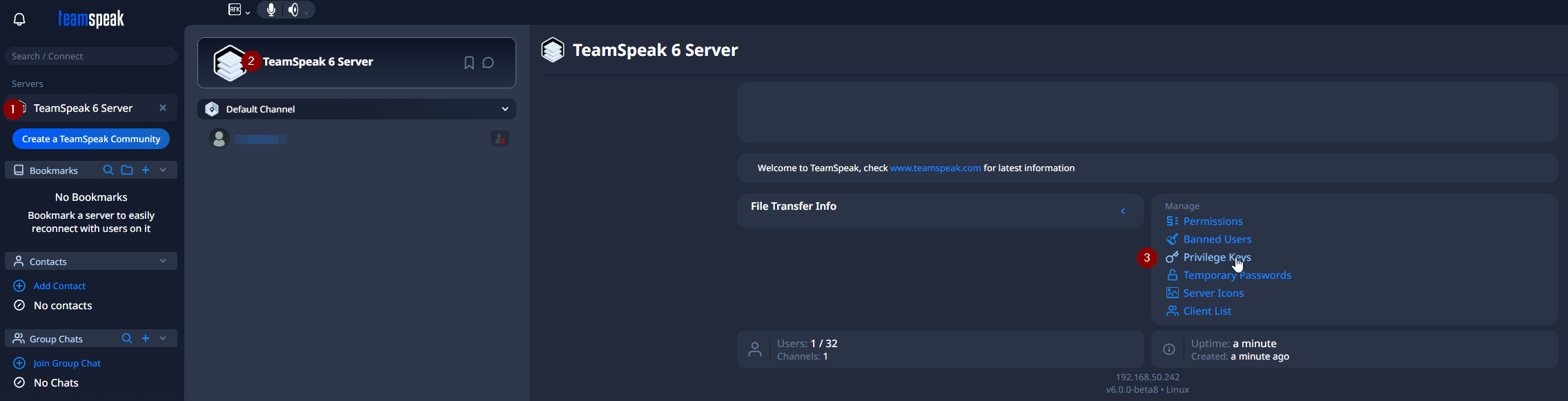
To create more admin keys in Teamspeak 6, click your server name at the top when logged on, then in the far left menu column, there will be “privilege keys”
Port Forward Teamspeak 6 Server Ports
The following ports will need to be port forwarded for Teamspeak 6 Server to work:
- 9987 UDP (Voice)
- 30033 TCP (File Transfers)
- 10011 TCP (ServerQuery)
How to port forward on OPNsense:
OPNsense port forwarding allows external internet traffic to reach internal network services by navigating to Firewall > NAT > Port Forward and creating a new rule. Key settings include setting the Interface to WAN, defining the Protocol (TCP/UDP), setting the Destination Port, and entering the internal Redirect Target IP.
You can read more about it here
ASUS Port Forwarding:
You can read how to port forward on an Asus router here
TP-Link Port Forwarding:
You can read how to port forward on a TPP-Link router here