How to Install OnlyOffice in 2026
Installing OnlyOffice
We are going to show you how to install and use OnlyOffice, it can be downloaded from here across multiple platforms like Windows server, Debian Linux, or Docker. Again, we will use their notes for Debian Linux found here
System requirements
- CPU: at least 6-core (8-core recommended)
- RAM: at least 12 GB (16 GB recommended)
- HDD: at least 40 GB of free space (make sure to include space for your Linux OS too, around 30 GB) so expect to use a total of at least 70 GBs.
- Additional requirements: at least 6 GB of swap
- OS: amd64 Linux distribution with kernel version 3.10 or later
Download ONLYOFFICE DocSpace Community Docker script file:
curl -O https://download.onlyoffice.com/docspace/docspace-install.sh
Installing ONLYOFFICE DocSpace from DEB/RPM packages
To install ONLYOFFICE DocSpace Community using DEB/RPM packages, run the following command:
sudo bash docspace-install.sh package
Once the installation is finished, open a browser and enter the local network computer IP address to the browser address bar. The DocSpace setup page will open.
Now you need to specify your email, password (by default, the password must be at least 8 but no more than 30 characters long), accept the License agreement terms. You can also select the necessary language and time zone using the corresponding drop-down lists. When all the parameters are set, click the Continue button.
When installing using DEB/RPM packages, you can set the default port via debconf:
echo "docspace docspace/port string 80" | debconf-set-selections
Using OnlyOffice
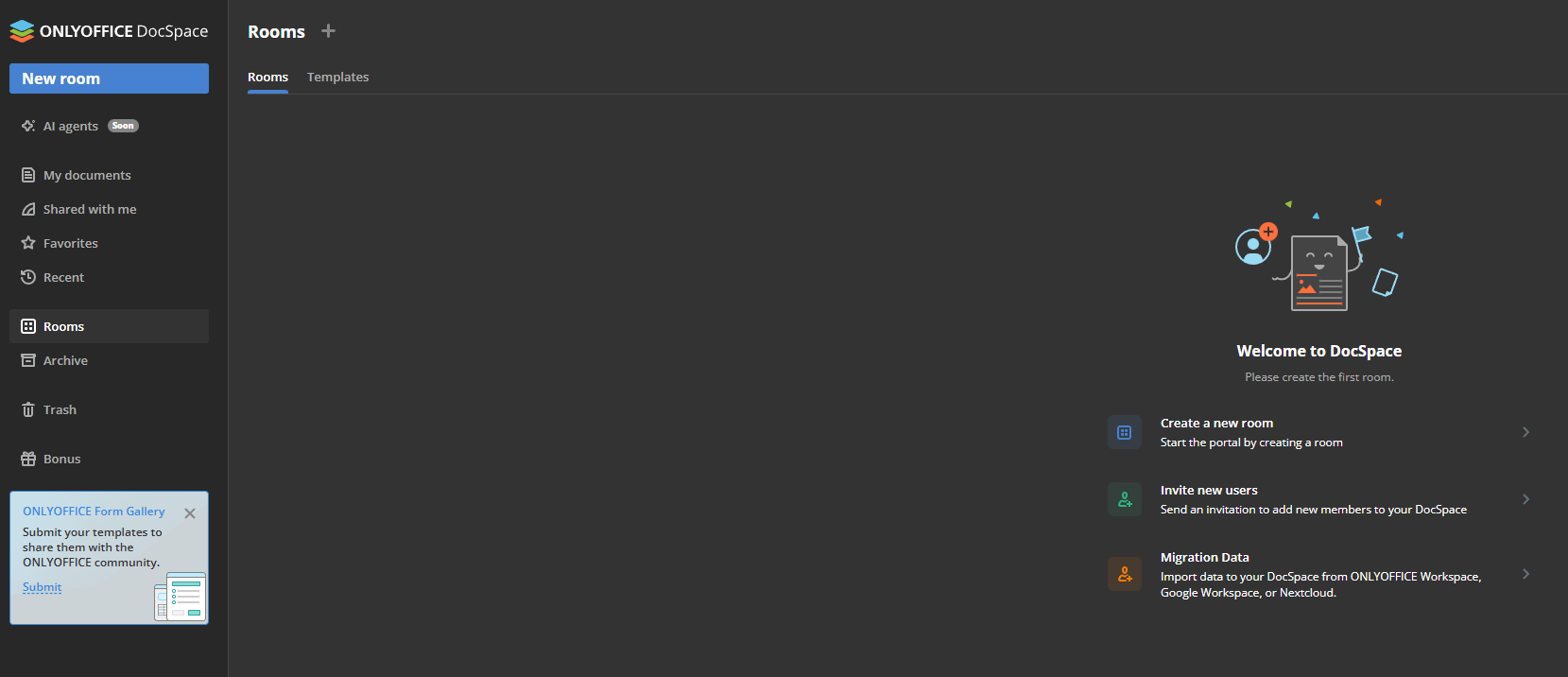
Then go into your browser and type the IP address of the VM you installed OnlyOffice on, you will be presented with a page that looks like the image below. Go ahea and create a room for the task you want to do, specific tasks like teamwork, form-filling, or public sharing.